 dofun SOFTWARE STORE
Walk through a slide.
Point to a number, a chart, or a diagram with Laser Pointer. Switch it off when you move back to the wider story.
 CursorGleam macOS 14+
Keep your audience with you during presentations, screen recordings, and meetings. Clear highlights, click ripples, and a laser pointer — right from your Mac's menu bar.
A small cursor can disappear into a busy screen. A visible pointer and clear click feedback help people follow the steps you are showing.
Point to a number, a chart, or a diagram with Laser Pointer. Switch it off when you move back to the wider story.
Use a highlight and click feedback while demonstrating a toolbar, editing a document, or explaining a sequence of actions.
Follow a line of code or a spreadsheet cell during a call. Share the full display and check a short sample before your session.
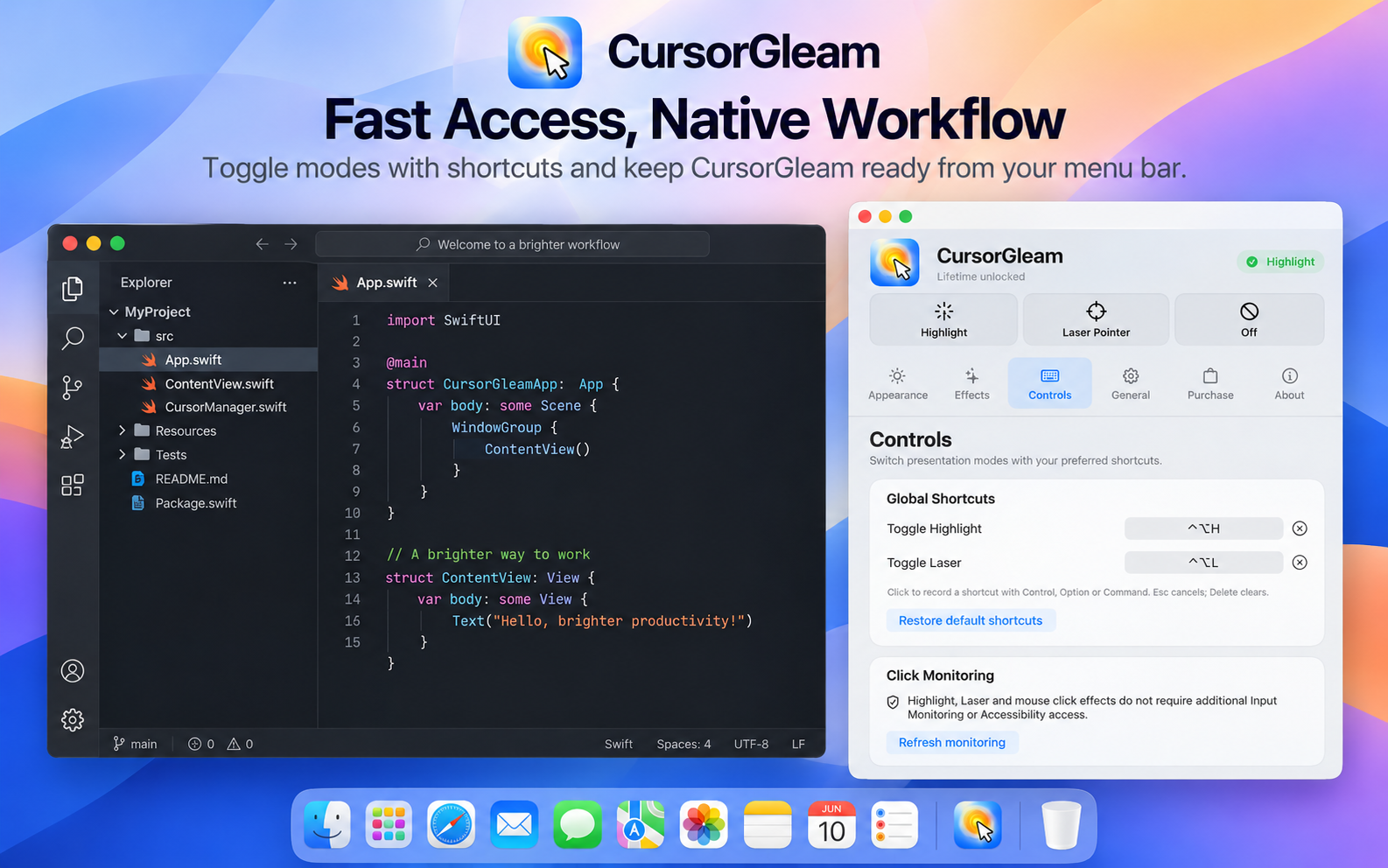
Choose an effect, adjust its appearance, and switch modes without leaving the screen you are working on.
The feature illustrations below show the shared interface. Any “Lifetime unlocked” labels or purchase prices pictured in them do not describe the current trial download. Purchasing and activation are coming soon.
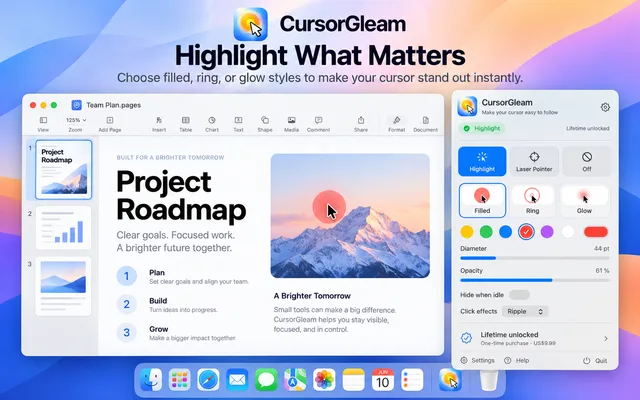
Choose a filled circle, ring, or soft glow around your pointer. Match the effect to a busy code editor, a spreadsheet, or a bright presentation slide.
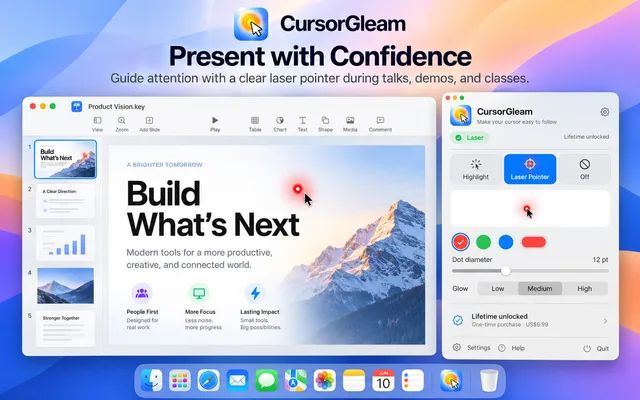
Switch to Laser Pointer for a chart, a line of code, or the next step in a walkthrough. Turn it off again when the audience needs to see the whole screen.
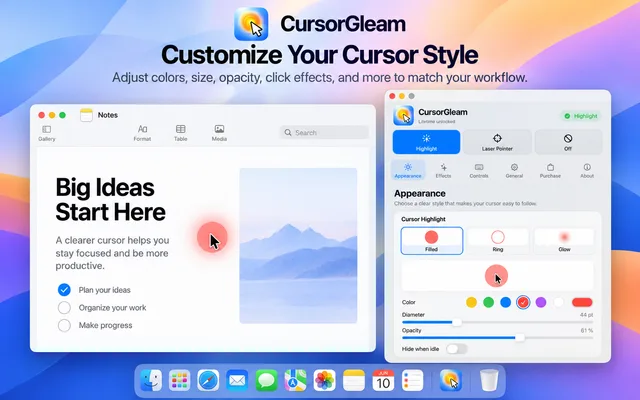
Keep appearance and shortcut preferences close at hand. CursorGleam draws effects in local overlay windows without capturing screen pixels.
Explore the feature illustrations at your own pace. The current website trial is shown separately below.
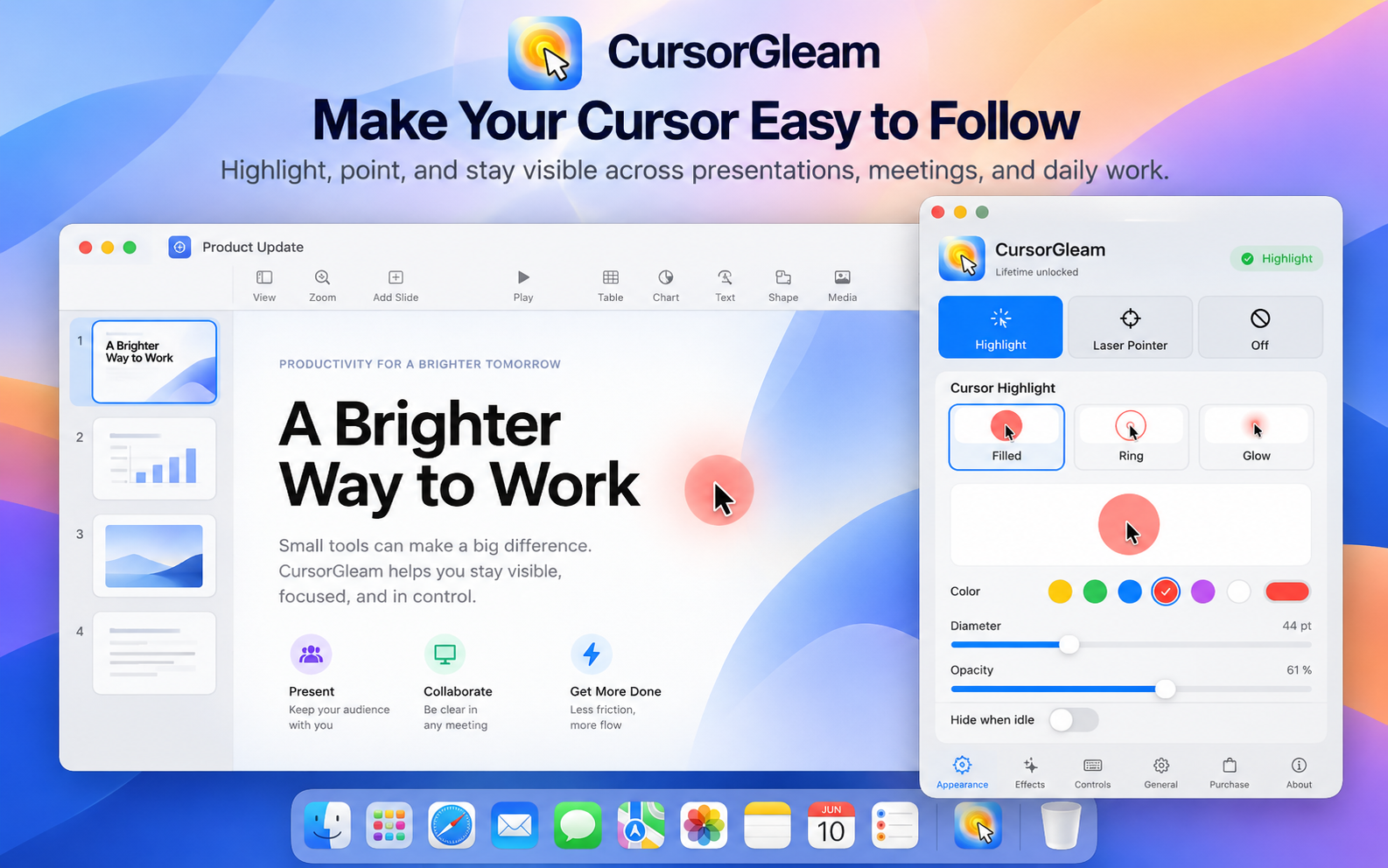
Switch between Highlight, Laser Pointer, and Off from the menu bar.
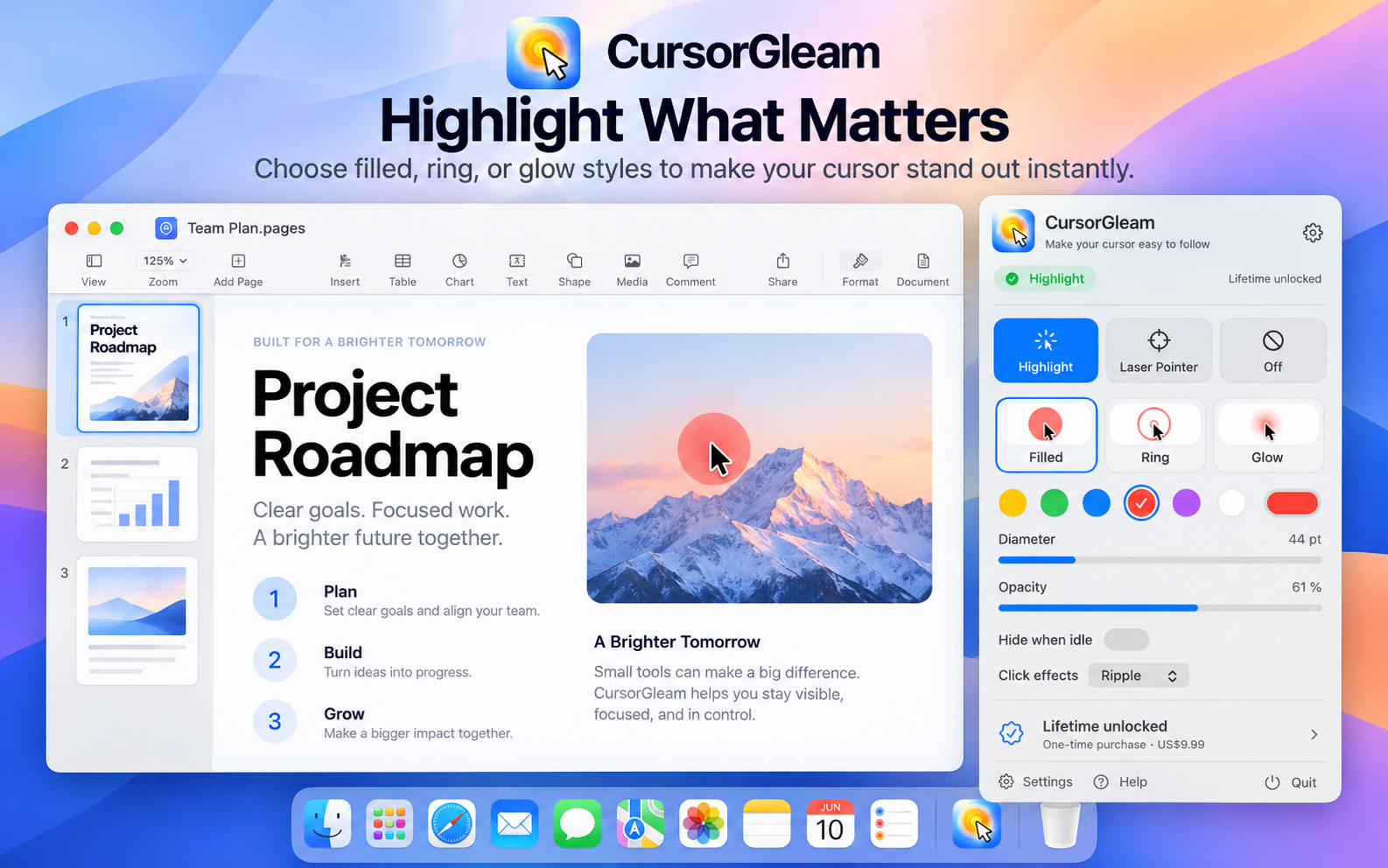
Choose a filled circle, ring, or glow, with adjustable color, diameter, and opacity.
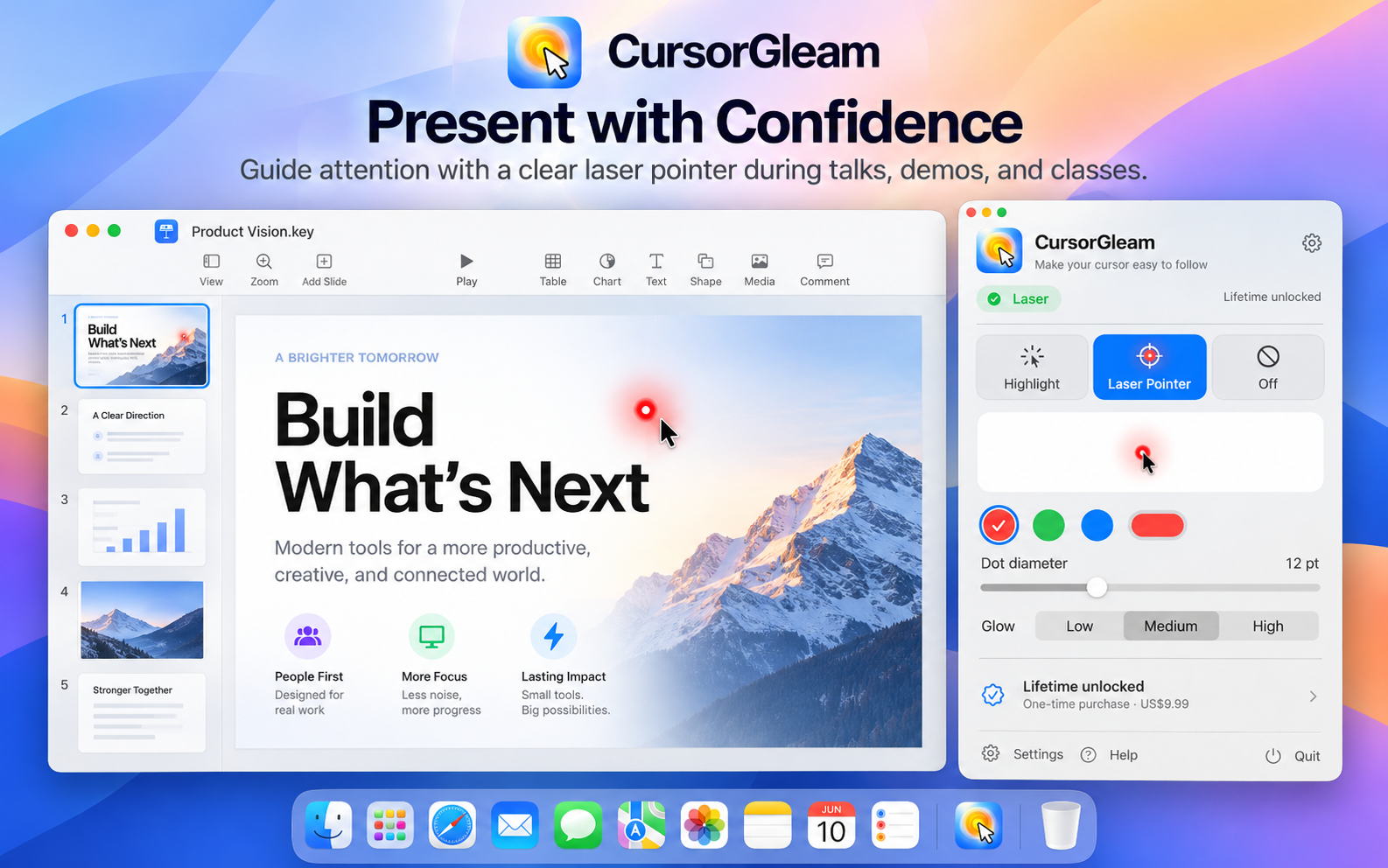
Direct audiences toward exact lines of code or complex dashboard charts.
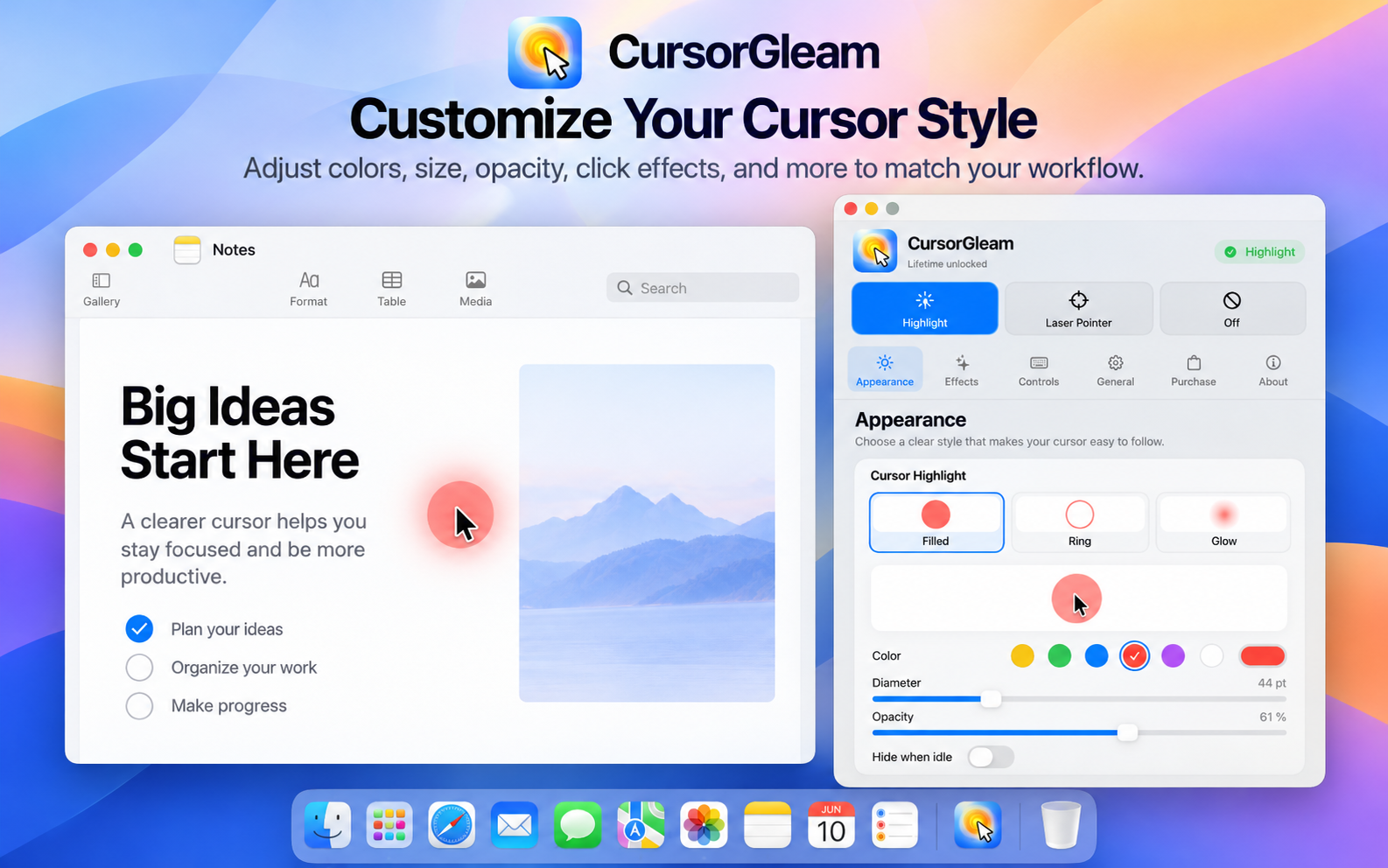
Adjust radius, opacity, hotkeys, and multi-monitor display targets.
Use built-in and external displays. Test a full-display recording before presenting to your audience.
Open the signed, Apple-notarized DMG, drag CursorGleam into Applications, and launch it. Its menu bar icon opens Settings.
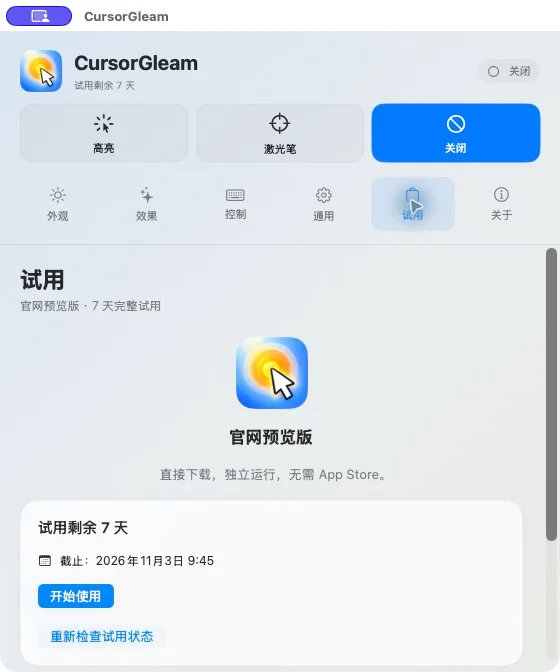
Start the trial in the app when you are ready. Choose Highlight or Laser Pointer, then adjust the effect for your screen.
Test full-display sharing or recording in your chosen software. Individual-window capture can omit overlay windows.
Download first, then start the trial inside CursorGleam when you have time to use it. No account or payment details are required.
Supports Apple Silicon and Intel Macs, including built-in and external displays. The app runs from the menu bar.
No screen recording is used to draw effects. CursorGleam does not record keystrokes or save pointer history. Click feedback may require macOS input permission.
Overlay visibility depends on the capture tool and mode. Test your setup during the trial; full-display capture is the recommended starting point.
Read app privacy →A practical guide to cursor highlights, click feedback, and screen sharing on Mac.
Start the trial in the app when you are ready. The current download includes the trial only; paid licenses are not yet available.
7 days full access to all highlight styles, click ripple, and laser pointer.
No payment details required. Start the trial in the app when you are ready. Effects pause when it expires.
One-time purchase. No recurring subscription. Regular price $9.99; introductory price $4.99.
Purchasing and activation are coming soon. The current download provides the trial only. No charges are collected on this site.
No. CursorGleam operates entirely in local transparent overlay windows. It never requests screen recording permissions, captures screen pixels, or monitors keystrokes.
Purchasing and activation are coming soon. The planned regular lifetime price is $9.99, with a current introductory offer of $4.99. The current website download includes a manually started 7-day trial; effects pause when it expires. No payment or automatic renewal takes place.
Download the signed and Apple-notarized DMG, open it, and drag CursorGleam into Applications. It requires macOS 14 or later and supports Apple Silicon and Intel Macs. Launch it from Applications and use its menu bar icon to open settings.
You start the 7-day trial voluntarily inside the app. All features are fully unlocked. When the trial ends, effects pause gracefully without any automatic charge or surprise bill.
Yes. CursorGleam creates native overlay windows for each connected display, handling multi-monitor arrangements, Retina scaling, and full-screen spaces seamlessly.
Use full-display sharing or recording and test a short sample in your actual setup. Individual-window capture can omit the overlay windows; visibility depends on the capture mode and software.
Press ⌃⌥H (Control+Option+H) to toggle Highlight, and ⌃⌥L (Control+Option+L) to toggle Laser Pointer. You can customize them in Settings.
Install the signed and Apple-notarized Mac app. Start your trial when you are ready.